
Field guide
Your first outing in MarshWise.
Start with a hunt site, then follow the steps through scouting, hunting, and reviewing your records.
This guide follows the current development version. Labels may change as the app develops.
Save your first hunt site
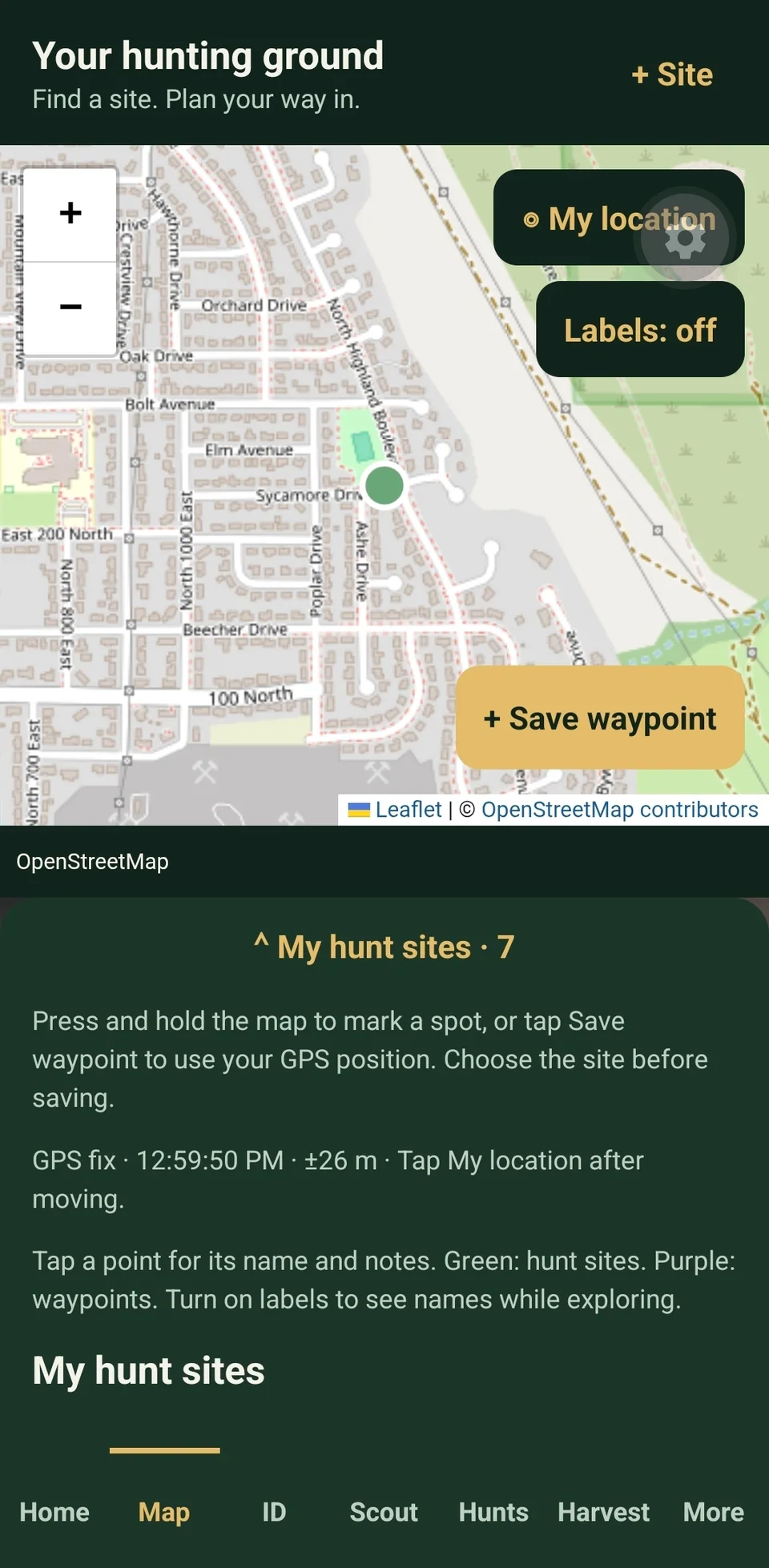
Open Map and tap + Site. Enter a Site name. Tap Use my current location, or enter the latitude and longitude yourself. Tap Save hunt site.
Give the site a name you will recognize later. You will select this same site for scouting and hunts.
See the Map screen
Record a scouting visit
Open Scout, select the hunt site, and enter Bird activity. Add species, an approximate count, or notes if useful. Tap Save scout visit.
The site and bird activity are required. The other observation fields are optional.
Start the outing
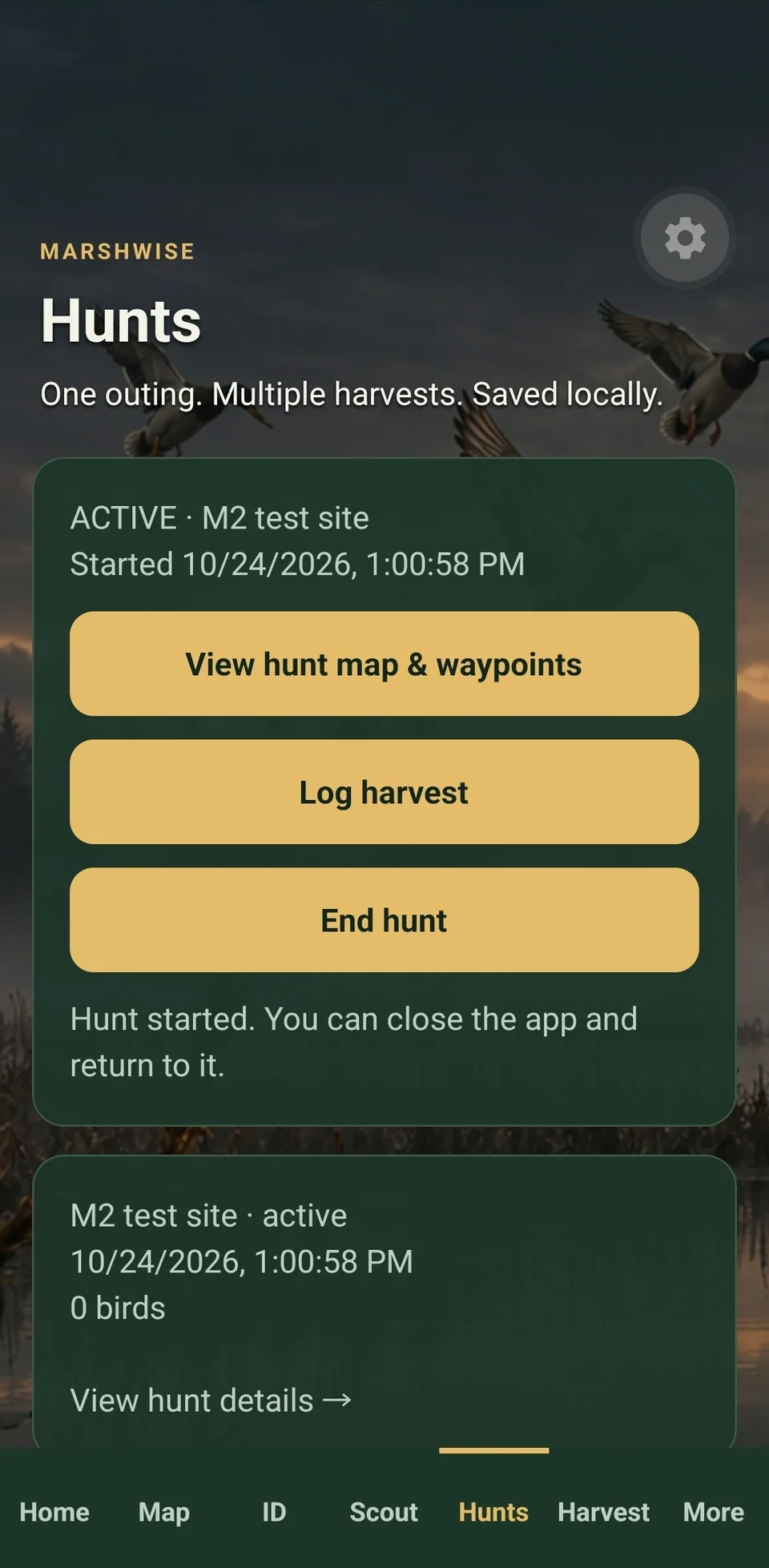
Open Hunt, select your site, and add any hunt notes. Tap Start hunt. The app keeps the active hunt available when you close and reopen it.
Only one hunt is active at a time. End the current hunt before starting another.
See the Hunt screen
Record the harvest
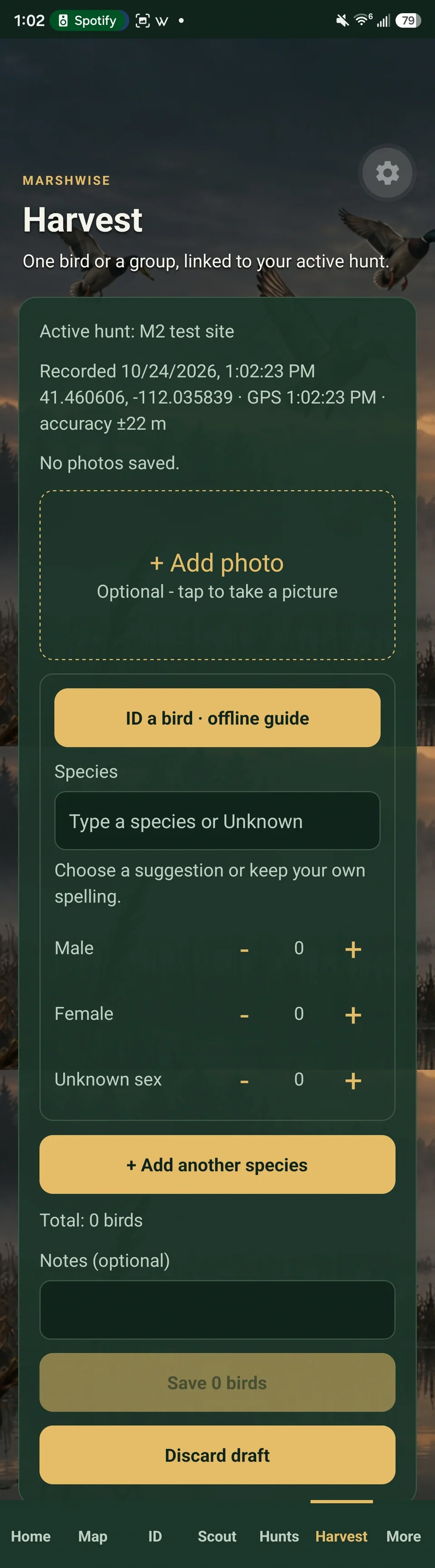
From the active hunt, tap Log harvest, then + Record Harvest. Select species and enter the counts. Use + Add photo for photos and + Add another species for another group. Tap the Save button showing the bird count.
Review the recorded location and time. You can save without a photo or GPS. Finish saving before ending the hunt.
See the Harvest screen
Finish the hunt
Return to Hunt and tap End hunt. Confirm when prompted. If there is an unfinished harvest, return to Harvest and save it or discard the draft first.
Ending a hunt keeps its saved harvests in history.
Look back through your records
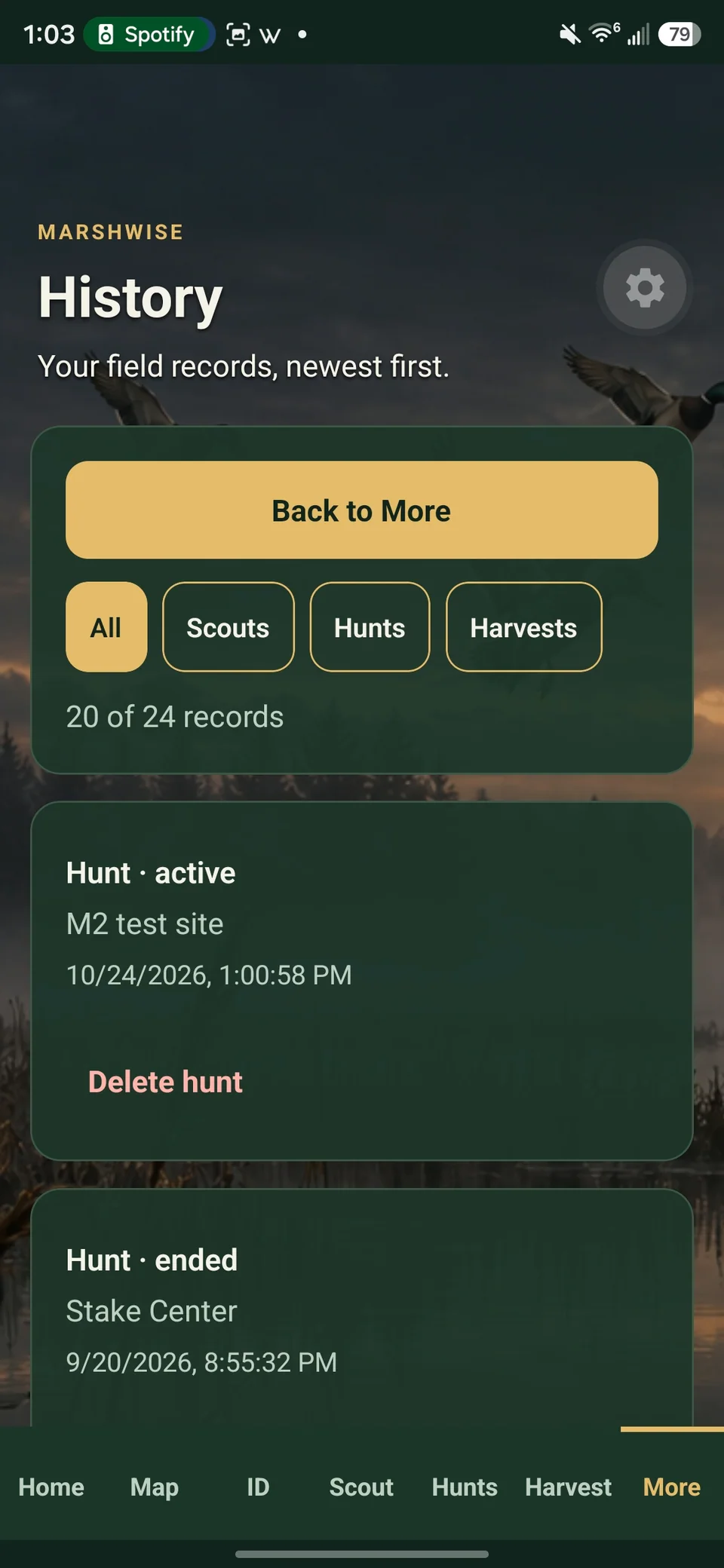
Open More for recent records. Tap View all history to browse the full list. Open a hunt to return to its details.
If you use cloud backup, check the upload status in More before clearing app data or changing phones.
See the History screen
Offline use & permissions
Saved sites, scout visits, hunts, and harvests are stored on your phone. Core logging and the bird guide work without internet. Map imagery may be unavailable when you have no service; offline map downloads are not included.
Allow location access to capture coordinates and camera access to take photos. If location is unavailable, you can enter site coordinates manually and save a harvest without GPS. Review missing-location messages before saving.
When using a development build, open the app before heading out and check that your records load.
Backup & restore
If cloud services are enabled for your build, open More to sign in with an email link. Read the account notice before choosing Link this phone’s records to my account: the current version keeps that account link.
Linking enables automatic uploads while you are signed in and the app is open. Check Cloud uploads for progress. Pause uploads lasts until you resume or reopen the app. Cloud restore can recover supported missing records and photos from your linked account.
Waypoints are currently stored only on the phone and are excluded from cloud backup. Clearing app data or uninstalling the app or its development host can remove local records. Confirm what has uploaded before changing devices.
Bird identification
The Bird ID guide is available offline. Optional AI photo identification needs a connection, sign-in, and an enabled service. It sends a resized photo and available date and approximate location for analysis.
Check the suggested species and field marks yourself. When logging a harvest, you can accept a suggestion and then edit it before saving, or enter the details manually.
How identification uses your data →